
Ways to Repurpose Your PowerPoint Presentation Slides
Last updated on November 21st, 2025
As many presenters know all too well, creating a winning, stunning, and unforgettable presentation takes a lot of work. Oftentimes, such a stroke of genius may seem impossible to replicate. After all, you spend hours conceptualizing, planning, and crafting a highly persuasive or compelling message with seamless and outstanding visuals with the right balance of animations.
If you’re about to create more presentations and you want to still capture the wow factor of your other amazing presentations, then don’t worry, you can repurpose your PowerPoint presentations into other content, to be distributed in a different channel or medium.
What You Need to Repurpose your Presentations & Slide Deck into Other Content?
First of all, it’s best to get this little tidbit out of the way. Repurposing PowerPoint presentations can indeed save you a lot of time, energy, and hassle. However, you should still consider which PowerPoint presentations to repurpose, on what topic and for what audience. For example, you may find it harder to repurpose your financial report presentation to become a creative pitch deck, as compared to just creating it all from scratch.
However, if the topics and messages are fairly along the same lines, then a few tweaks here and there can definitely do the trick. You can revamp a used PowerPoint presentation and definitely bring it back to life as something new, opening up your slides to a whole new set of possibilities and new audience, of course.
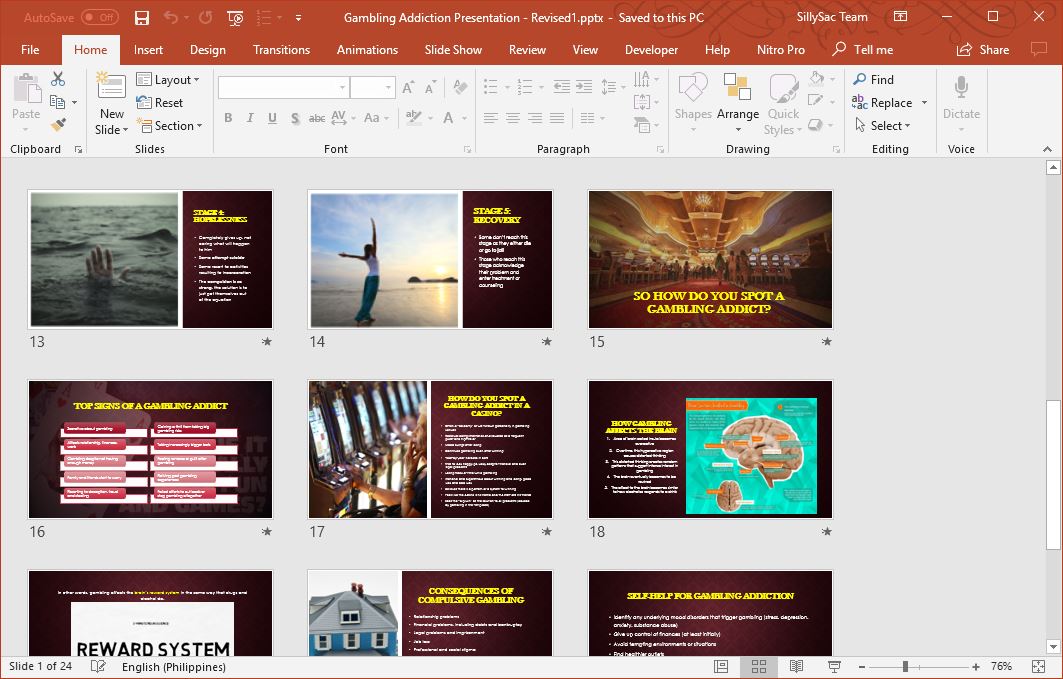
1. Upload Your Slideshow to SlideShare
SlideShare is a great platform for sharing and hosting slideshows. And it’s free. You can also share infographics and documents through this platform. You can attract and expand your audience just by uploading your presentation on SlideShare.
Just be sure to customize your presentation to suit your audience and make appropriate changes. Then, go to the SlideShare portal, sign up for an account, and then click on the “Upload” button.
Once you’ve uploaded, just tag your presentation appropriately to maximize visibility. Then, you can also include your slideshow in blogs using SlideShares HTML embed code. You can also share your slideshows no through social media by copying the URL. Remember, however, that the best way to upload your PowerPoint presentations to SlideShare is by saving it as a PDF file. This enables you to preserve your formatting, especially your font styles. While you’re in PowerPoint, just go to File -> Save As then choose PDF file format.
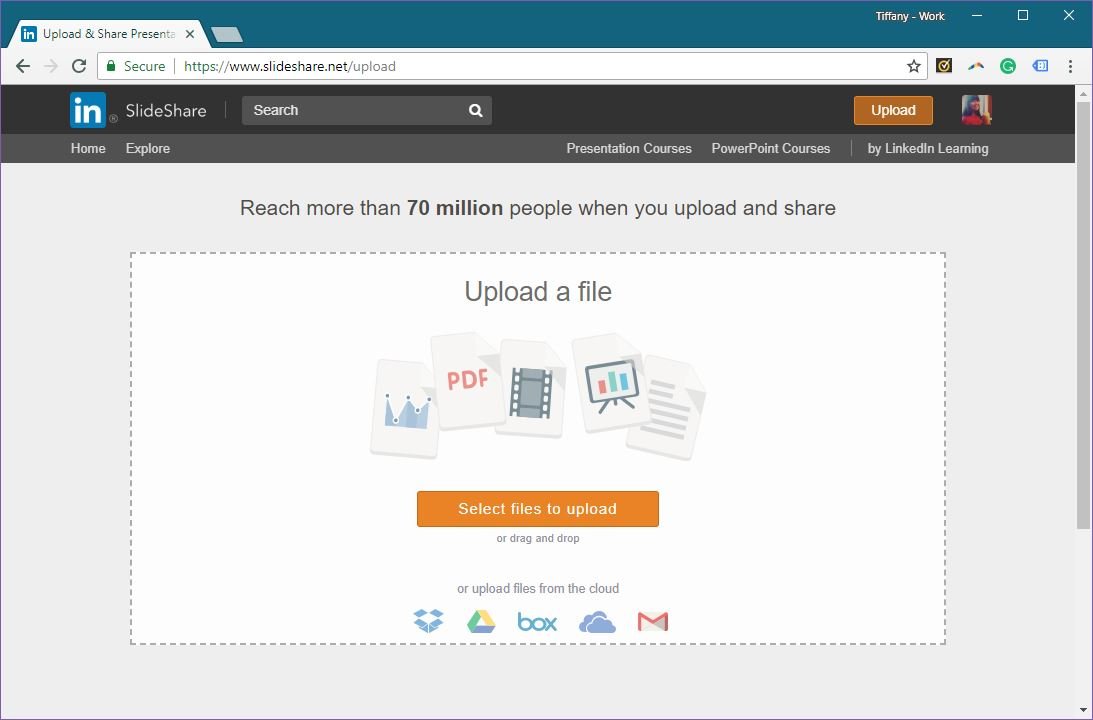
2. Transform Presentation Slides into a Webinar
If your presentation was a hit with your audience in a room or auditorium, then it’s more likely that it’s going to be a hit for an even wider audience. You can transform your Microsoft slides into a webinar presentation.
There are many applications that can help you turn your PowerPoint presentation into a webinar, complete with real-time feedback features, among many other things. What you can do here is you can customize your old presentation, improve on what didn’t work, and publish your repurposed presentation into a webinar.
You can check out the various webinar tools reviewed by us to get an idea about how to best conduct a webinar according to your requirements.
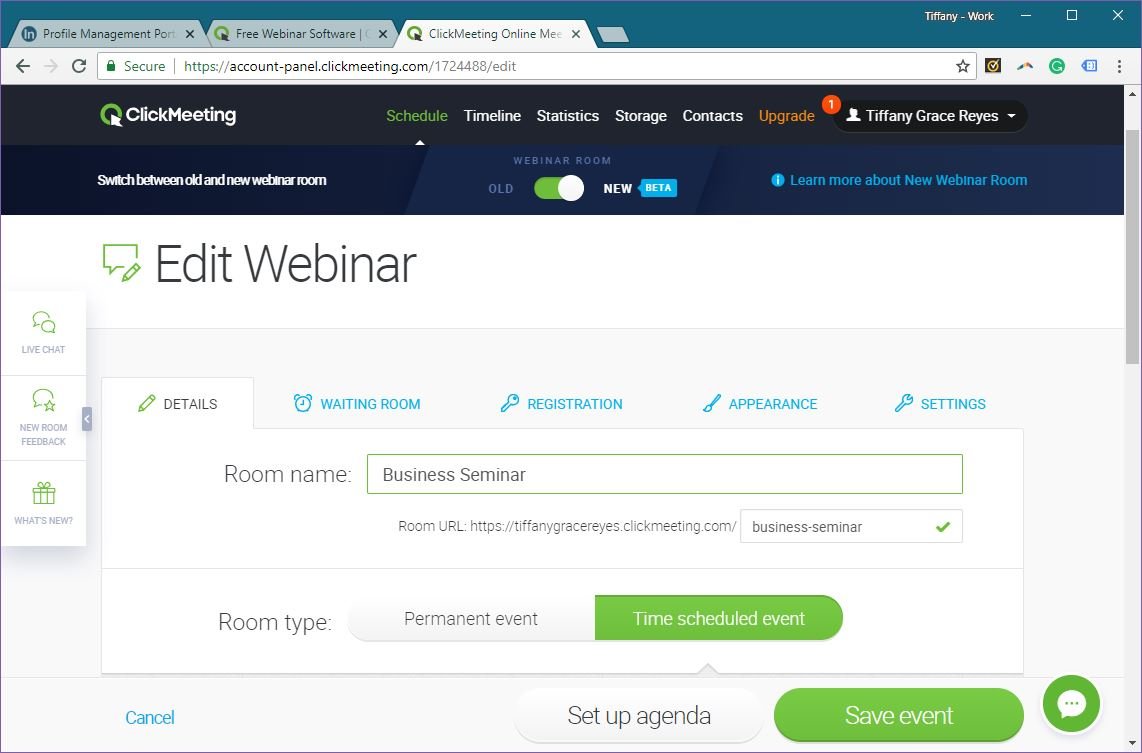
3. Turn Your Presentation into a Video
If you don’t know it yet, you can turn your PowerPoint into a video with your voice-over narration. And this can be done right within PowerPoint via the SlideShow tab by opting to record your slideshow with narration or by using third-party services such as Presentious. Alternatively, just go to File -> Save As -> Mp4 or WMV to save slides to video format.
If you have already gone ahead and published your presentation into a webinar using a webinar platform, you can use the given options (depending upon the platform) to convert the presentation to video. Different services such as GotoMeeting and AnyMeeting offer recording features for webinar and meeting sessions. You can also upload these recorded sessions later to YouTube, Vimeo, and even Facebook.
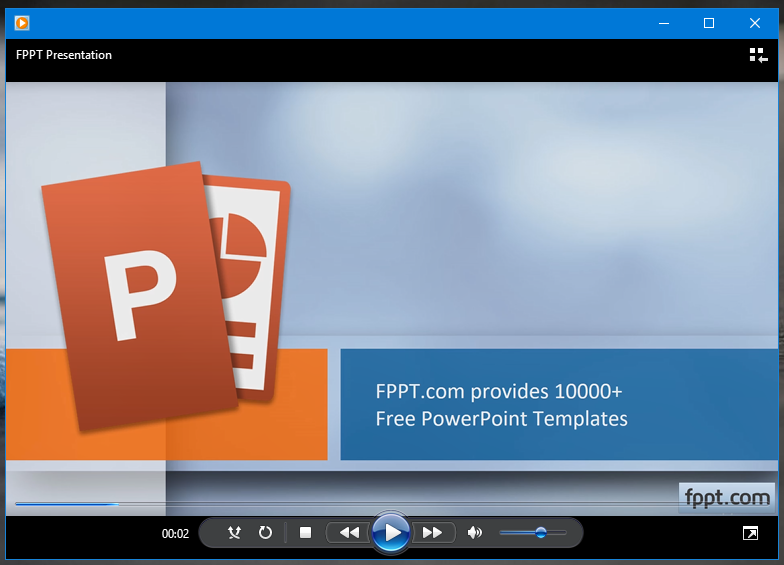
4. Turn Your Slides into Images
Those exquisitely designed slides can be turned into images. And the best part of it, it doesn’t take any other software or a lot of technique to do this.
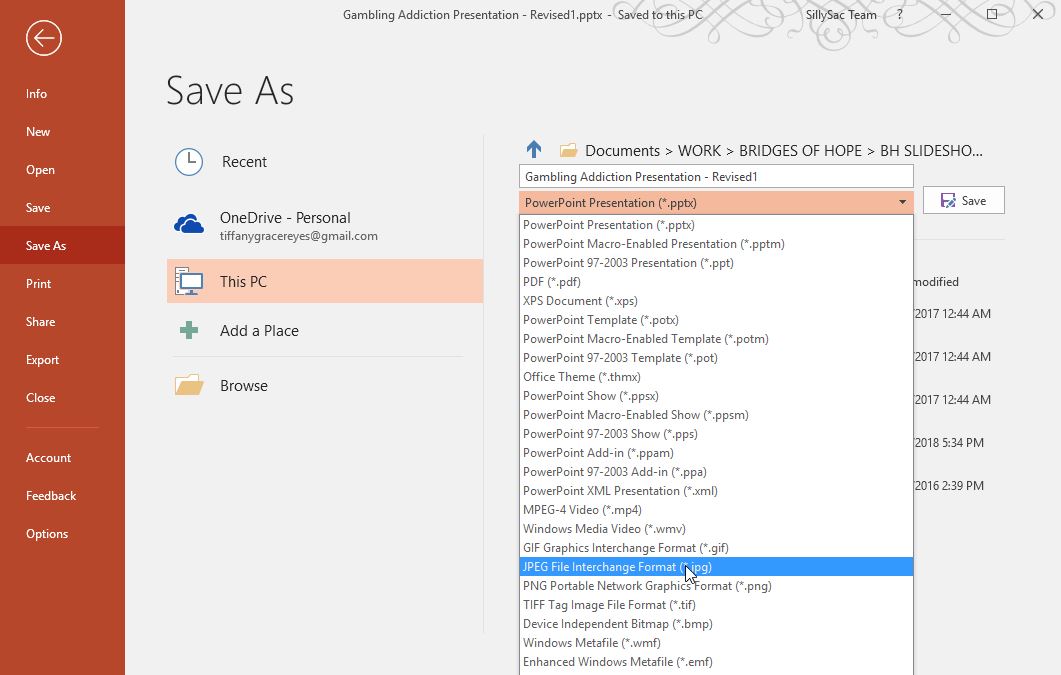
All you have to do is open up your slideshow in PowerPoint, then click on File ->Save As -> and, under the drop-down menu for the file type, select and image format such as JPEG or PNG. Then, click on Save. Review the PowerPoint dialog box and make sure you select All Slides to save each slide in your presentation as one separate image in one separate folder. Then, you can use each of these slide images for anything. You can post them as pictures in an album in social media accounts such as Facebook. Just make sure the slides go well together or can stand alone.
5. Turn your Slides into LinkedIn Carousels
Your presentation slides can be repurposed into Carousel posts on LinkedIn. LinkedIn Carousel posts offer an engaging way to showcase your presentation content to a professional audience. Carousels allow you to share multiple slides in a single post, enabling you to tell a story or present information an interactive format. Here’s how you can transform your presentation slides into a compelling LinkedIn Carousel:
- Select Key Slides: Choose the most impactful slides from your presentation that convey the core message or highlight important data and insights. Focus on slides that can stand alone and still make sense in the context of the carousel.
- Optimize for LinkedIn: Ensure your slides are visually appealing and concise. LinkedIn users often scroll quickly, so it’s important to capture their attention immediately. Use bold headlines, clear visuals, and minimal text to make your message clear and engaging.
- Export as Images: Convert your selected slides into images. In PowerPoint, you can do this by clicking on File -> Save As -> and choosing an image format like JPEG or PNG. This will allow you to upload each slide as an individual image in your LinkedIn Carousel.
- Create the Carousel Post: Log into your LinkedIn account and navigate to the post creation section. Select the option to create a Carousel post, and upload your slide images in the order you want them to appear. You can add captions to each slide to provide additional context or explanations.
- Engage with Your Audience: After publishing your Carousel post, encourage engagement by asking questions or prompting discussions in the comments. Respond to comments to keep the conversation going and to build a connection with your audience.
By repurposing your slides into LinkedIn Carousel posts, you can extend the reach of your presentation content and engage with a professional audience in a dynamic way. This not only maximizes the value of your original presentation but also strengthens your presence on LinkedIn by showcasing your expertise and insights.
6. Create an Infographic from Your Presentation
Since your presentation already has a combination of images, diagrams and icons as well as great text, then these probably flow together nicely. With just a few tweaks, you can put them all together into one seamless infographic. Just make the necessary changes to make sure they flow together and make sense. However, at least all the elements that you need are within your slides, so it’s just a matter of rearranging them as one great infographic. There are also many applications out there that can help you out in creating infographics, like Adobe InDesign, Adobe Illustrator, and Photoshop, but PowerPoint can be used to make infographics as well.
When you repurpose your presentations, you are breathing into it new and even more life, opening it up to more possibilities. You transform your content to suit a wider or even a different audience but still maintain your core message or idea.